
Simply redeem your prescription online.
Fill your prescription conveniently online and have your products delivered to your home
Register, simply select the prescription purchase option on the product page and follow the instructions at checkout. This page also explains how the prescription purchase works at MEDDAX24.

To ensure timely delivery, please follow these simple steps:
1. Upload a photo of the prescriptions redeemed in the order
After placing the order, there is a link in the order confirmation and the confirmation email that directs you to the document upload for the order. Upload a photo of your prescriptions here and click "Send".
2. Send us your original prescription
Take the original prescription (we need the original that you received from your doctor) and place it in a standard envelope. Write our address on the envelope:
mediparts GmbH
Hünenbergstr. 157
46147 Oberhausen
3. Save on postage and use our free stamp code!
We will send you a free stamp code via email with your order confirmation. Simply write this code in the upper right corner of your envelope. This code replaces the stamp and is free for you.
We need the original prescription to process your order properly and bill your health insurance.
Thank you very much for your cooperation!
You will receive your stamp code from us
It consists of "#PORTO" and an 8-character string, e.g.: 1MVSTER4


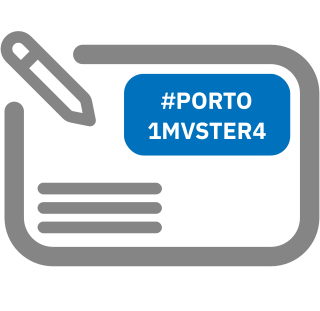
Clearly write the two-line code in the upper right corner of the envelope you use to send us the original prescription.
Use a dark pen and make sure the code is legible.
FAQ for purchasing with a prescription
For security reasons, you cannot view your orders without a user account and therefore cannot upload any documents. This is due to the required upload of your documents after placing an order for quick processing, in order to ensure delivery before a possible expiration of a prescription.
You will see the port code directly on the order confirmation page after your order. Additionally, you will receive an email with the corresponding code. Furthermore, you can access the stamp code through your order overview to view the respective order. Select the order with the prescription order here; you can find the stamp code in the order information..
Use the stamp code we provided to save on shipping costs. You can then either drop the letter into one of the yellow mailboxes of Deutsche Post as usual, or take it to a DHL post office or a post shop and hand it in for shipping there.
We rely on your cooperation here. In order to process the order as quickly as possible, you are instructed to upload the documents as images with your order for a faster processing time. After receiving and reviewing the original documents, your order will be shipped to you.
This allows us to prepare the order until we receive your original documents by mail. The processing of your order is thus significantly shortened, and the assurance of the prescription's validity until it arrives with us is increased.
To add documents to an order, first go to your order overview. Select the order with the prescription order here, and scroll to the bottom of the order. Here you will find a dialog for communicating and uploading documents..
The original prescriptions are required as proof in order to process the purchase with your health insurance. The image upload with the order is not sufficient for this purpose, as it is not accepted as proof by the health insurance companies.
Yes. Without a valid prescription, we cannot bill your health insurance for the order. If we receive your prescription and it has already expired at the time of receipt, you will be notified and your order will be canceled.